
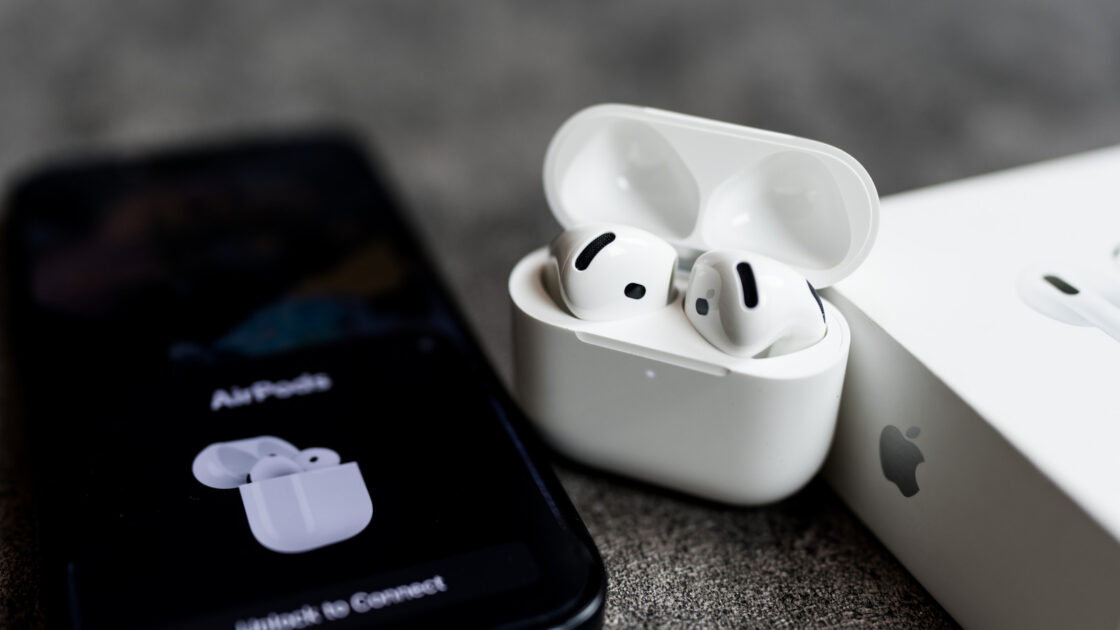
Apple AirPods usually offer seamless pairing with iPhones, but users occasionally encounter issues where the earbuds fail to connect or play sound. Most connection problems stem from simple settings issues, drained batteries, or software glitches that can be resolved quickly.
Common Causes for Connection Failure
A drained battery is one of the primary culprits behind connection failures. When the battery in either the earbuds or the charging case is completely dead, the AirPods will not appear on your iPhone. Dirt and earwax accumulation on the charging contacts can also block power delivery, requiring a gentle cleaning with a soft cotton swab.
Automatic switching between devices signed into the same Apple Account can also cause confusion. While designed to shift audio between an iPhone, iPad, and Mac based on active playback, background notifications can sometimes redirect the connection to the wrong device. Additionally, outdated firmware on the earbuds or an older version of iOS can disrupt connectivity. Users can check for iOS updates under the general settings and verify their AirPods firmware version against Apple’s official records, leaving the earbuds plugged into a charger for about 30 minutes to auto-update if necessary.
Troubleshooting and Resetting Your AirPods
Basic troubleshooting begins with verifying that Bluetooth is enabled in the device settings. Once confirmed, placing the AirPods in the ears allows them to be selected from the Bluetooth list or the audio output menu under the AirPlay button in the Control Center.
If the earbuds still fail to appear, resetting and re-pairing them is the next step. Users place both earbuds in the case with the lid open to enter pairing mode. For AirPods 4, AirPods 5, and AirPods Pro 3, this involves double-tapping the front of the case until a white light appears, double-tapping again when it flashes white, and a third time when it flashes faster. Older models require pressing and holding the button on the back of the case for roughly 15 seconds, while AirPods Max users must press and hold the Digital Crown and the noise control button simultaneously for 15 seconds. Successful completion prompts the iPhone to display on-screen setup instructions.
If all troubleshooting methods fail, the issue may stem from hardware failure. In such cases, users should contact Apple Support to inquire about a replacement, which may be covered free of charge if the device remains under the one-year warranty or is protected by an AppleCare+ plan.