

Table of Contents
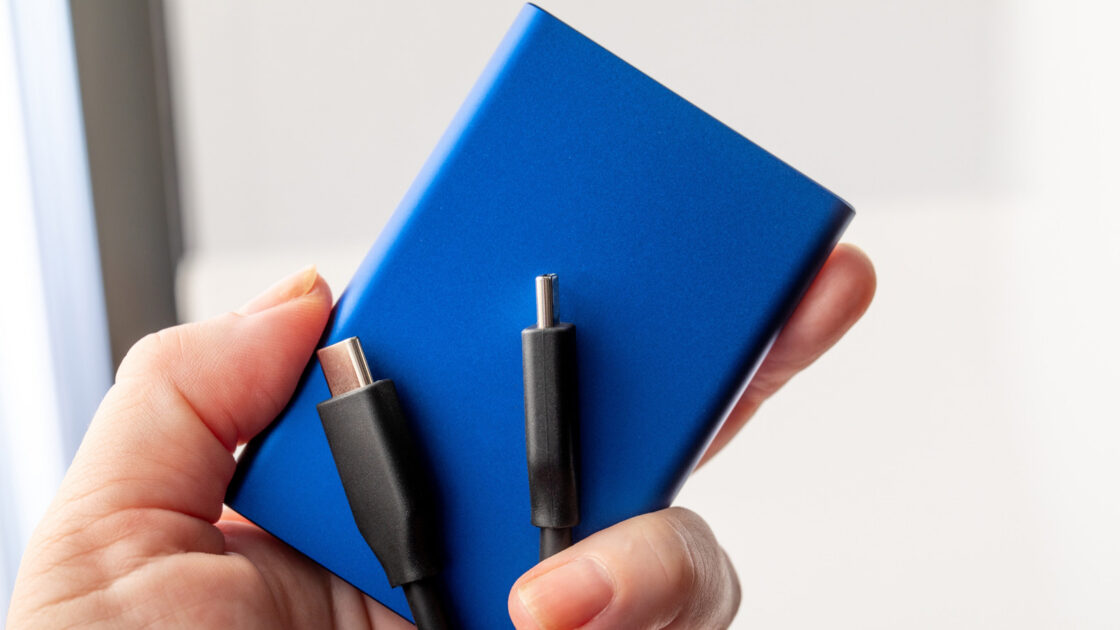
Finding a reliable portable SSD is essential in modern computing, offering easy file transfers and backup safety through strategies like the 3-2-1 rule. However, local storage devices can suddenly stop working or fail to initialize altogether.
Hardware and Basic Connection Checks
According to Engadget, users should begin by ruling out faulty hardware before suspecting the drive itself. Try plugging the device into a different port or swapping out the USB or Thunderbolt cable. Using the correct cable is vital since Thunderbolt handles charging, data transfer, and video. Users must also ensure the drive receives adequate power, as some computer USB ports lack sufficient energy, and drives with AC adapters require them to be plugged in. Finally, testing the drive on a second computer can help isolate the issue.
Software Solutions for Windows 11
When Windows or macOS detects a drive that fails to load, improper formatting may be the cause. In Windows 11, users can search for Device Manager in the taskbar and expand the Disk drives section. If the drive appears, right-clicking it and selecting Properties, then Volumes, and Populate may restore it. Alternatively, checking Disk Management allows users to assign a missing drive letter. If the drive lacks NTFS formatting, reformatting is an option, though it will erase all existing data. Before taking that step, users can run the CHKDSK utility by opening the Terminal app and entering chkdsk [drive letter] /r to fix errors and recover bad sectors.
Using Disk Utility on macOS
For Mac users, Disk Utility serves as the primary software rescue tool. After opening the application, users should select View and then Show All Devices. Clicking the indented entry for the drive and selecting Mount at the top of the app may resolve the issue. If that fails, using First Aid can repair errors without causing data loss. Reformatting is also available through Disk Utility, but it will wipe the drive completely clean.
Updating Drivers and Seeking Professional Help
Another straightforward fix involves updating hardware drivers. Mac users can check for updates by navigating to the Apple menu, System Settings, General, and Software Update. Windows 11 users can check for updates via Settings and Windows Update. Windows users can also return to the Device Manager Properties menu, click the Driver tab, and choose to update or uninstall the driver. Uninstalling without deleting the driver file, followed by a PC restart, will automatically reinstall the correct software.
If all troubleshooting steps fail, users can hope a simple reboot resolves the issue or seek third-party assistance from the manufacturer or a repair shop. Individuals with valuable trapped data may require the services of a professional recovery firm, while operating system recovery tools remain an unlikely fix for issues not already addressed.