

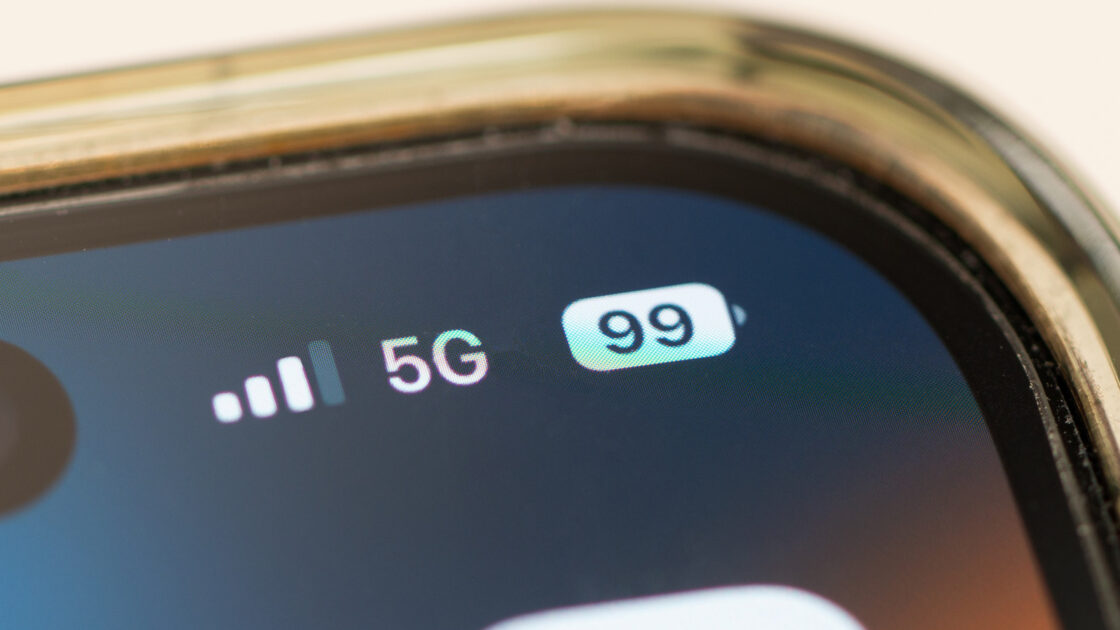
Smartphones constantly measure signal strength, speed, and latency to ensure a stable internet connection. When a device abruptly switches from Wi-Fi to mobile data, it is usually attempting to prevent interruptions, though various factors can trigger the change.
What Triggers the Automatic Switch?
According to Engadget, automatic switching is designed to maintain connectivity, but it can unexpectedly drain mobile data or disrupt processes requiring Wi-Fi. A weak Wi-Fi signal is a frequent cause, often resulting from distance or physical interference. Different Wi-Fi frequencies offer varying performance: the 2.4GHz band reaches roughly 150 to 300 feet and penetrates walls easily, while the faster 5GHz band has a shorter range of 100 to 150 feet with poorer wall penetration. The newer 6GHz band provides the highest speeds but features the shortest range and weakest object penetration.
Another frequent cause is a Wi-Fi network lacking internet access, which can stem from network congestion, router malfunctions, or internet service provider issues. Additionally, built-in device settings influence how smartphones handle network transitions. Features like Connectivity Assist on iOS 27 use mobile data alongside Wi-Fi to preserve stability.
Users can often identify the root cause by observing where the disconnect occurs. An explicit “no internet connection” message points to router or ISP trouble, while switching restricted to specific rooms indicates a weak signal. If other devices operate normally on the same network while only the phone switches, an automatic switching setting is likely active.
How to Stop the Switch and Fix Underlying Issues
Owners can prevent automatic switching by adjusting their device settings. iPhone users can disable Connectivity Assist on iOS 27 by going to Settings, selecting Wi-Fi, and toggling off the feature. For iOS 26 and earlier, users can turn off Wi-Fi Assist by navigating to Settings, choosing Cellular or Mobile Service, and toggling off Wi-Fi Assist.
Samsung Galaxy owners can stop the behavior by opening Settings, selecting Connections, tapping Wi-Fi, choosing the three-dot menu icon for Intelligent Wi-Fi, and turning off “Switch to mobile data.” Google Pixel users can complete the process by going to Settings, choosing Network & Internet, selecting Internet, opening Wi-Fi preferences, and disabling “Switch to mobile data automatically.”
Once automatic switching is disabled, addressing the underlying Wi-Fi problem is recommended. Users can connect to a router’s 2.4GHz band for a wider range or invest in Wi-Fi extenders and mesh systems to eliminate dead zones. For dropping internet connections, restarting the router after unplugging it for at least 30 seconds, checking for ISP outages, and updating router firmware can resolve the issue. Data-conscious users who prefer to keep some automatic switching active can also configure specific applications to perform downloads, cloud backups, and syncing exclusively over Wi-Fi.