
Many drivers keep Android Auto on its default factory settings after connecting their mobile devices, missing out on opportunities to personalize their car display. Customizing layout options, rearranging app icons, and creating quick shortcuts can significantly streamline dashboard navigation and promote safer driving habits, as reported by Engadget.
Customizing the App Launcher and Adding Shortcuts
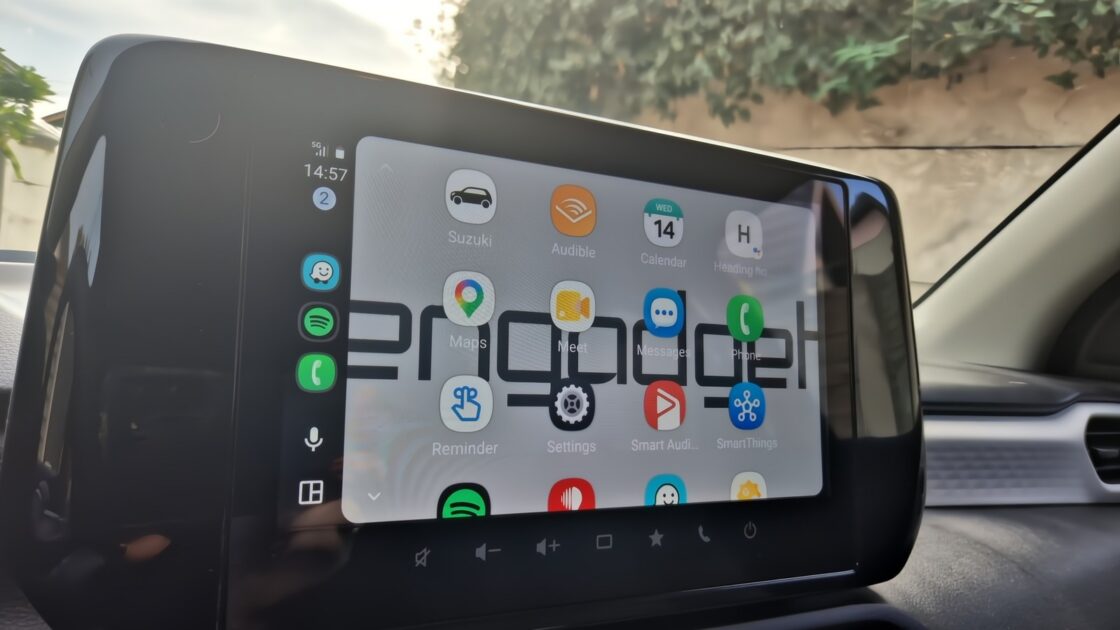
Most interface modifications begin directly on the connected smartphone by navigating through Settings to Connected devices and selecting Android Auto, followed by Customize launcher. From this menu, users can hide unused applications or drag app icons into a preferred order, such as prioritizing music services like Spotify over secondary tools like weather or reminder apps. Hiding an app from the car dashboard merely removes its display icon without deleting the application from the mobile phone.
The launcher customization screen also allows users to configure custom shortcuts for contact calls or specific Google Assistant and Gemini commands. Drivers can set single-tap buttons or voice triggers to execute complex multi-step routines, such as launching home navigation while automatically texting estimated arrival times to family members. Voice shortcuts can also simplify hands-free dialing to specific contacts during stops without scrolling through address books.
Modifying Layouts, Wallpapers, and Map Settings
Visual settings within Android Auto allow drivers to reconfigure screen alignment based on personal focus. Under the Change layout menu, drivers can choose whether the navigation map or media playback interface is positioned closer to the driver’s side. Placing turn-by-turn navigation nearer to the driver reduces glance times away from the road, though the optimal configuration varies depending on screen dimensions and split-screen support.
Infotainment aesthetics can also be updated directly from the car display settings menu by enabling the option to mirror the paired smartphone’s wallpaper. Additional visual controls include manually setting map displays to permanent day or night modes within the Maps section, rather than relying on automatic ambient light detection. Drivers looking to prevent unexpected audio playback can also turn off the automatic media start feature under the system’s Startup settings.