
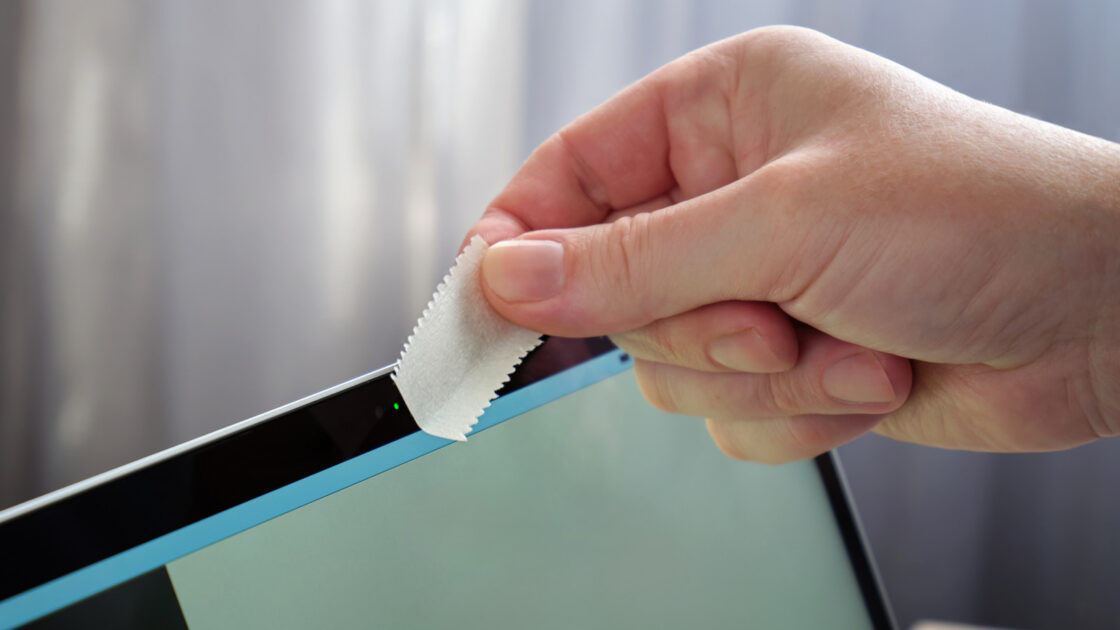
Webcam covers offer a simple way to block laptop lenses, but they can cause serious and expensive damage to MacBook screens. Engadget reported that while these plastic covers guard against spying, they interfere with the tight tolerances built into Apple laptops.
The risks of using a webcam cover
Apple warns that closing a MacBook lid with a camera cover installed can damage the screen. The gap between the display and the keyboard is engineered with millimeter precision to close properly, and any added thickness puts extra pressure on the components. This added pressure can lead to glass cracks, permanent marks, display failures, and adhesive residue that blocks camera sensors like automatic brightness.
Modern MacBooks feature extremely thin bezels around the camera notch, leaving almost no frame space for a cover. Apple advises that if a cover is completely necessary, it must be as thin as a sheet of paper (around 0.1 millimeters). Additionally, Apple’s warranty does not cover screen damage caused by webcam covers, leaving users responsible for repair costs.
Safer ways to maintain privacy
Most users do not need a physical barrier because MacBooks include built-in privacy safeguards. Every MacBook features a green indicator light next to the camera that activates whenever the lens is in use, and this light cannot be triggered without the camera running. For models without a physical LED, macOS displays a green dot in the top-right corner, and applications must request explicit permission to access the camera.
Users can review and manage these permissions by opening System Settings, selecting Privacy & Security, and clicking on Camera to disable unauthorized apps. The green camera icon in the menu bar also shows which application is currently using the camera.
If workplace rules require a webcam cover or if users still prefer one, they should follow Apple’s thickness guidelines and remove the accessory before closing the laptop lid.