
Table of Contents
The USB ports on a PlayStation 5 offer far more functionality than simply keeping a controller battery topped off. While some uses are common knowledge, Engadget points out that various ports across the console’s front and back serve different speed capabilities and purposes.
Add more storage
Storage space on modern consoles fills up rapidly, and adding an M.2 SSD can be costly. Connecting an external SSD or HDD offers an alternative way to expand system room, though players cannot run PS5 games directly from an external drive due to speed requirements. Instead, users can archive PS5 games on an external drive and transfer them back to internal storage when ready to play, which is beneficial for slow internet connections or data caps. Players can, however, run PS4 games directly from external storage.
Compatible drives must feature at least USB 5 Gbps (USB 3.0) speeds and a capacity between 250GB and 8TB. These drives cannot be connected through a USB hub, and users are limited to one active drive at a time. Formatting erases all existing data via Settings > Storage > USB Extended Storage > Format as USB Extended Storage.
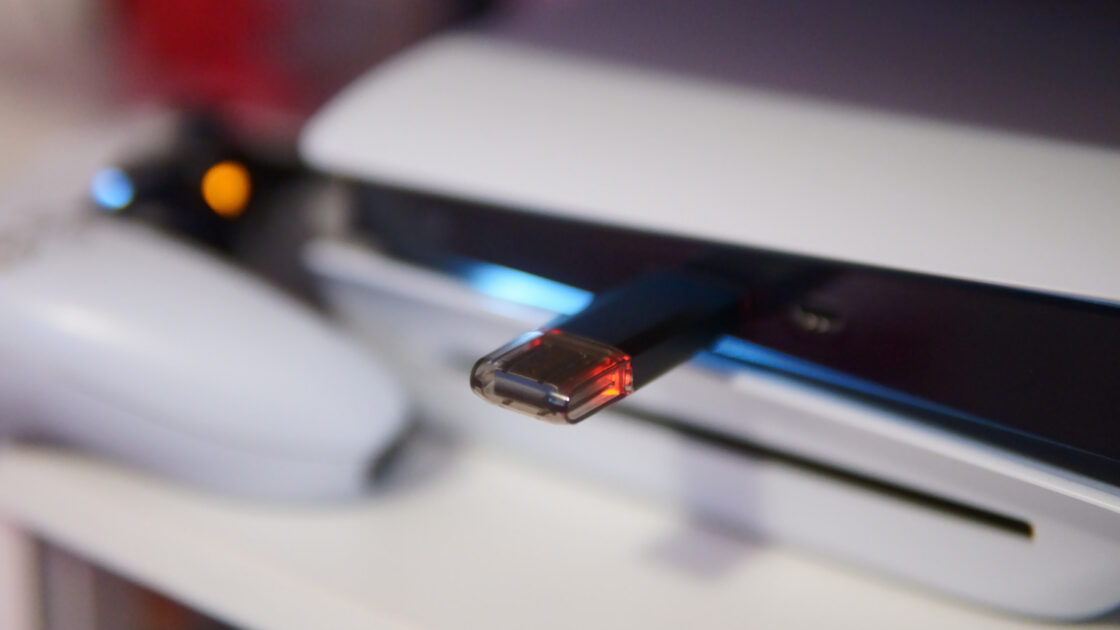
External drives also store screenshots and video clips, though a single drive cannot handle both games and media simultaneously. Media storage requires a standard exFAT or FAT32 format, prompting the need for two separate drives or a flash drive for quick computer transfers.
Charge and pair controllers
Charging controllers remains the most common use for the console’s USB ports, and connecting a DualSense controller via cable provides the fastest method for initial pairing. Keeping a cable plugged into the front slow USB 2.0 port ensures it is readily available when pairing with a friend’s console or a PC.
To optimize power usage when charging controllers in Rest Mode, users can navigate to Settings > System > Power Saving > Features Available in Rest Mode. Selecting 3 Hours shuts off power after that duration, while the Adaptive setting on PS5 Slim and Pro models automatically stops power delivery once the controller finishes charging.
Connect other peripherals
The console supports numerous input options to alter gameplay interactions. The PlayStation VR2 connects its single USB-C cable directly to the high-speed front port, while the original PS VR requires a PS4 camera and an adapter. The PS5 HD Camera displays user faces during Twitch or YouTube streams, though third-party cameras lack native support.
Gaming headsets rely heavily on USB connectivity for both wired models and wireless dongles. Racing wheels and fight sticks provide authentic experiences for specific game genres, while many titles also support keyboards and mice for typing messages or navigating supported games like Overwatch.
Other ways to put those USB ports to use
Players can back up console data to a FAT32- or exFAT-formatted USB drive by going to Settings > System > System Software > Back Up and Restore > Back Up Your PS5, provided the drive is not configured for game storage. Trophies and M.2 storage are excluded from this all-or-nothing backup process, and restoring requires a system reset. Individual PS4 game save data can be backed up separately under Saved Data settings.
The console also permits video playback from USB drives following specific formatting guidelines, and capture cards can be attached for extended footage recording. Users can experiment with random USB devices to test compatibility, as incompatible hardware will simply trigger an error message or remain unresponsive.