
Leaving a Galaxy S26 Ultra’s S Pen behind in a meeting room can trigger a phone warning that the accessory has not returned to its slot. Engadget notes that this alert serves merely as a reminder rather than a precise tracking feature, meaning users cannot pinpoint the exact location of the pen inside a room.
Which Samsung S Pens Work With SmartThings Find?
According to Engadget, the S Pen Pro is the sole model officially compatible with SmartThings Find. Samsung initially introduced this accessory alongside the Galaxy S21 Ultra in January 2021 and released it later that August. Compatible phones include the Note 10 and Note 20 series, the Galaxy S21 Ultra through the S26 Ultra, and the Z Fold 4 through Z Fold 6.
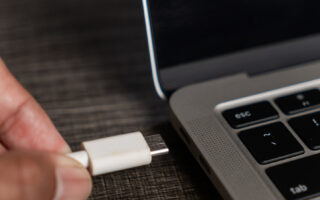
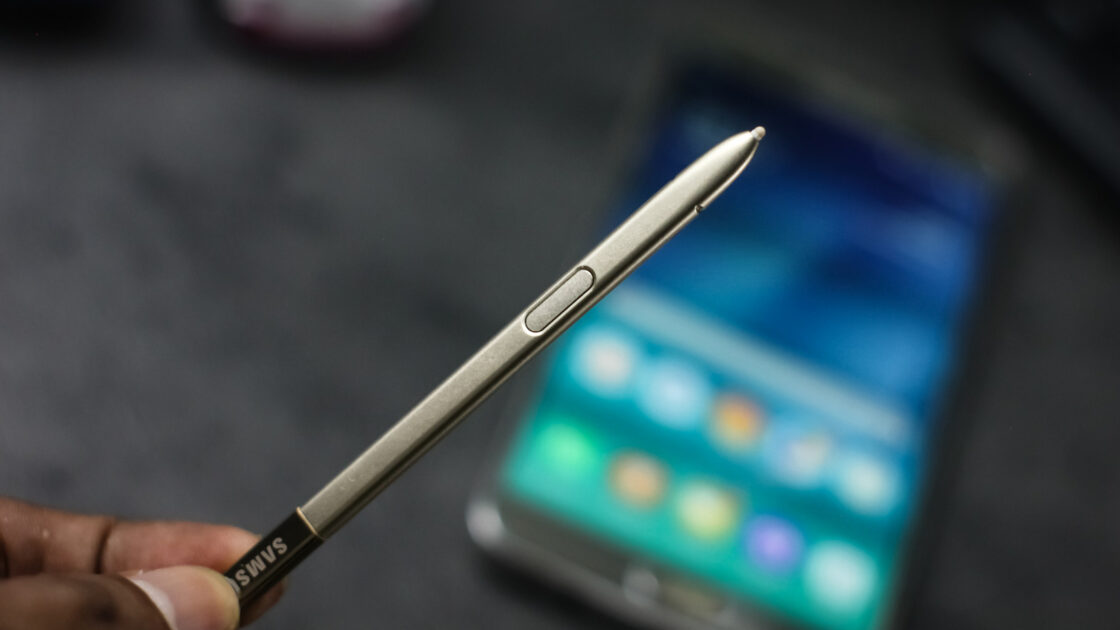
Available separately for $100, the S Pen Pro is a larger, rechargeable stylus equipped with a USB-C port beneath its cap, a dedicated pairing button, and a switch for compatible Galaxy devices. However, Engadget points out that it does not fit inside the built-in pen slot of the Galaxy S26 Ultra.
Bluetooth connectivity also does not guarantee tracking capabilities. Samsung first introduced a Bluetooth-enabled S Pen with the Galaxy Note 9 in 2018 for remote camera and app controls, and carried similar features over to later Note models and the S22, S23, and S24 Ultra. Despite this, Engadget reports that none of those built-in pens can be located using SmartThings Find. Samsung subsequently removed Bluetooth from the S25 Ultra and S26 Ultra S Pens, while tablet accessories, the S Pen Fold Edition, and the Creator Edition also lack Bluetooth and SmartThings Find support.
How to Find a Lost S Pen Using SmartThings Find
To set up the S Pen Pro for tracking, users must charge the device, select the correct mode, and hold the Connection button for three seconds. Tapping Connect when prompted and signing into a Samsung account completes the initial setup. Next, users must open SmartThings, navigate to Life > Find, access the three-dot menu, and select Settings > Allow devices to be found to enable Offline finding.
If the S Pen Pro goes missing, users can open SmartThings > Life > Find, select the S Pen Pro, and tap Refresh to update its location on the map. Choosing More > Navigate provides directions, while swiping up on the pen’s details allows users to access Navigate and Blink light to flash the indicator nearby. The separate Samsung Find app also lists the S Pen Pro under its Devices tab, as reported by Engadget.
Participating Galaxy phones and tablets with offline finding enabled can detect the powered-on S Pen Pro via Bluetooth and anonymously relay its location to Samsung. While the setting may be enabled by default, users have the option to turn it off. Samsung also provides an Encrypt offline location feature for enhanced privacy.
For built-in styli, users can check Settings > Advanced features > S Pen > More S Pen settings > Warn if S Pen is left behind, if available. Engadget notes that the S26 Ultra can alert users if the pen remains outside its slot after the display turns off, saving time even without exact location mapping.
If a stylus is permanently lost, buyers must ensure any replacement is compatible with their specific device. Engadget reports that Samsung lists a replacement Galaxy S26 Ultra S Pen for $55 in the United States.