

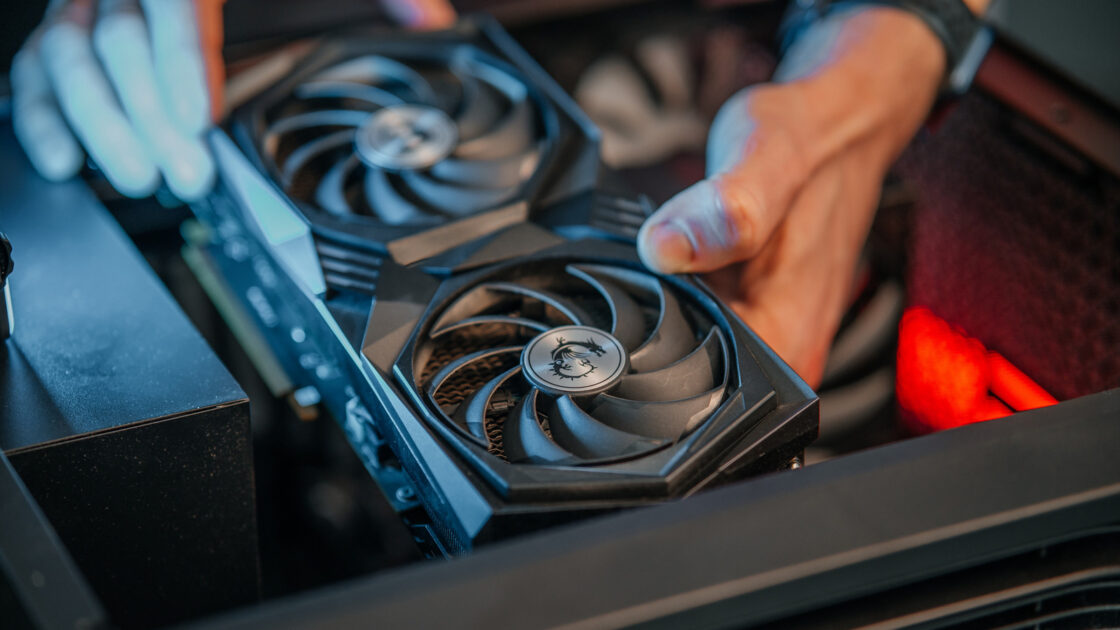
Checking your computer’s graphics hardware requires no physical tools and relies entirely on built-in Windows features. Windows computers often feature multiple graphics processors, meaning the component powering daily tasks might differ from the one running demanding games.
Checking the GPU via Task Manager
Task Manager provides a fast method to check graphics hardware details beyond simply monitoring resource usage. The Performance section outlines the graphics card along with memory specifications, driver information, and active workloads.
Users can open Task Manager by pressing the Ctrl + Shift + Esc shortcut. On Windows 11, the Performance section is located in the left sidebar, while Windows 10 users can click the Performance tab at the top.
Selecting GPU 0 reveals the model name of the graphics processor in the upper-right corner. Additional entries like GPU 1 should also be reviewed if they appear.
GPU numbering does not indicate performance levels or power. Windows assigns numbers based purely on hardware location, meaning GPU 0 is not necessarily the more powerful graphics card or the one running games.
Performance graphs display both dedicated and shared GPU memory values. Dedicated memory typically represents the VRAM available on a dedicated GPU, whereas shared memory is system RAM borrowed by the GPU when required. Certain integrated GPUs reserve a portion of system RAM for graphics, which Windows reports as dedicated memory even though the integrated GPU primarily depends on system RAM.
Task Manager additionally displays driver specifications, DirectX information, and GPU temperatures on supported hardware.
Alternative Built-In Tools
Device Manager offers a text-based alternative to view the GPU name without performance graphs. Users can right-click the Start button, select Device Manager, and expand the Display adapters section to view all graphics devices and check for both integrated and dedicated GPUs. Double-clicking a specific GPU and opening the Driver tab allows users to verify the installed driver version and date.
The DirectX Diagnostic Tool provides another built-in option. Pressing Windows + R, typing dxdiag, and pressing Enter opens a window where the Display tab details the GPU and installed drivers, while the System tab displays the installed DirectX version.
Seeing Microsoft Basic Display Adapter in Device Manager instead of a specific graphics card name indicates that Windows is using a generic display driver. While this does not automatically signal hardware problems, updating GPU drivers is recommended before further troubleshooting.
Users can also utilize third-party applications such as HWiNFO to monitor GPU temperatures, clock speeds, and power readings alongside CPU statistics.