
Table of Contents
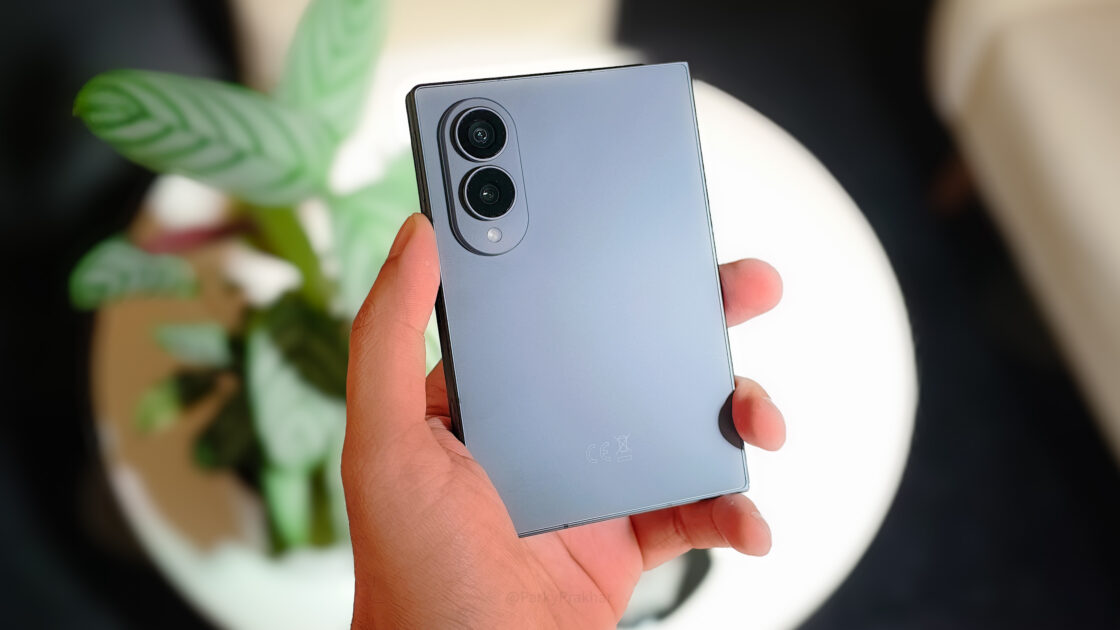
The Samsung Galaxy Z Fold 8 offers a thin and lightweight foldable design, but users can significantly enhance its software experience by adjusting a few hidden settings and tools. Beyond the standard settings menu, configuring specific plugins and options helps owners take full advantage of both screens.
Install the Good Lock App
As reported by CNET, downloading the Good Lock app from the Galaxy Store is a crucial first step to unlock advanced customization options on Samsung flagship devices. The default cover screen layout is locked to a four-column grid that wastes space, but the Home Up plugin allows users to place icons anywhere and create up to a 7-by-7 grid layout. This enables users to organize frequently used apps on the right side of the screen for convenient one-tap access and cleaner organization.
Put an End to Finger Gymnastics
To improve ergonomics on the wide device, the One Hand Operation Plus plugin allows users to add gesture handles to the sides of the screen and reprogram Android swipe gestures. Users can set shortcuts for up to six actions using straight and diagonal swipes. For instance, configuring a diagonal downward swipe from the right side opens the Quick Settings panel without requiring users to readjust their grip, while a diagonal upward swipe can launch the Calculator app.
The Camera Assistant Is a Must-Have
Although the Galaxy Z Fold 8 lacks a dedicated telephoto lens for optical zoom, users can improve digital zoom results by utilizing the Samsung Camera Assistant. Accessible through the Camera app menu, changing the default 12-megapixel resolution to 24 megapixels provides more detailed shots and improved results at 2x and 4x zoom without consuming as much storage as the full 50-megapixel mode. Additionally, enabling the 2x crop zoom shortcut adds a quick-access button to the viewfinder.
A More Intuitive Multitasking Experience
Samsung also improved the multitasking experience on the 2026 foldable lineup by enabling a 90:10 split-screen mode, which is useful for typing in a document while keeping research material visible. Furthermore, users can easily drag and drop apps into split-screen or pop-up view from the Recents menu, which remembers app groupings so they can be reopened together later.