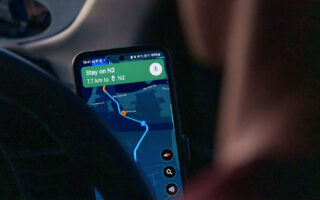

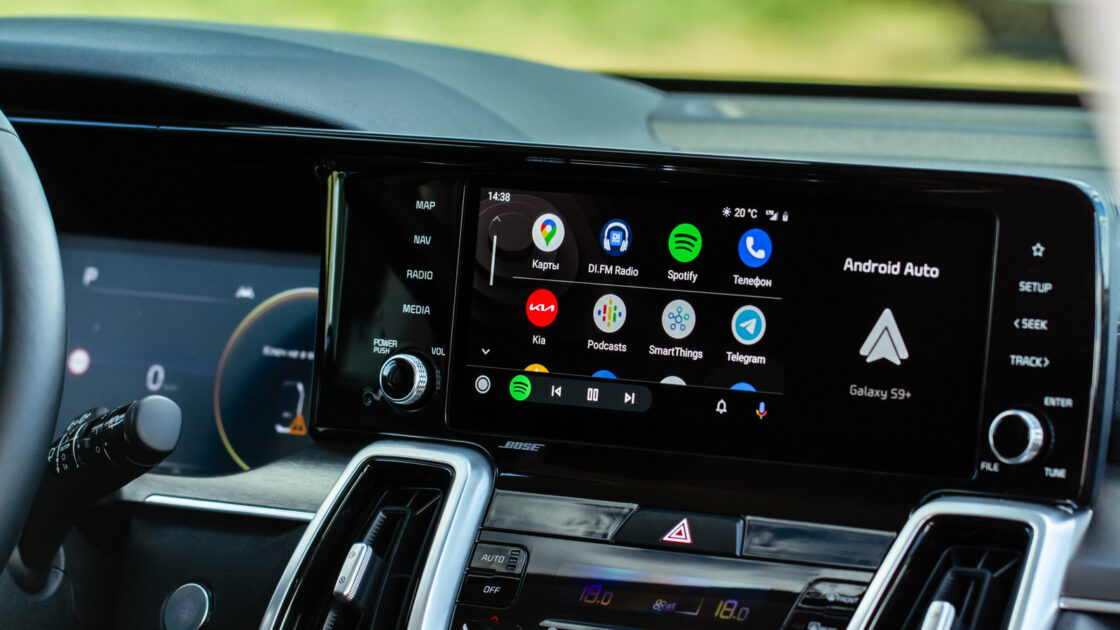
Using wireless Android Auto for an hour can consume up to 16 percent of a smartphone’s battery life when running heavy tasks like navigation and music streaming. This power usage generates significant heat, which is further increased if the device is charged simultaneously on a dashboard mount. Because wireless Android Auto requires both Bluetooth and Wi-Fi to remain active throughout the trip, long drives can cause devices like Pixel phones to overheat, triggering performance throttling and mobile data slowdowns.
Managing Heat With Proper Placement and Wired Charging
Google explained that thermal management was a primary reason for capping Pixel 10 and Pixel 10 Pro wireless charging at 15W, noting that wireless pads contribute additional thermal energy. Devices placed on dashboard pads under direct sunlight while running demanding navigation apps accumulate heat from multiple sources, which can ultimately slow down the charging process.
Google advises keeping devices away from direct sunlight, hot vehicle interiors, and poorly ventilated areas. Using an air-conditioning vent mount to keep the phone cool with blowing cold air provides a much safer alternative to a dashboard cradle exposed to the sun. Providing ample airflow around the device significantly reduces thermal buildup.
A physical USB connection generally keeps a smartphone cooler and charges it more efficiently than a wireless charging mount running wireless Android Auto. However, built-in vehicle USB port speeds vary by automaker and might occasionally prove too slow to prevent battery drain. Drivers wishing to switch to a wired setup can access the Android Auto developer menu. Although Google removed the wireless toggle from standard settings in version 8.7, it remains accessible in the hidden developer settings, allowing users to disable wireless Android Auto and connect via a USB cable.
Adjusting Android Settings to Save Power
Switching network settings from 5G to LTE yields the most noticeable improvement in battery conservation, as certain networks force phones to maintain concurrent LTE and 5G connections, driving up power usage. LTE provides ample speed for both mapping and music playback. Users of Samsung Galaxy devices can adjust this by navigating to Settings, Connections, Mobile networks, Network mode, and selecting LTE preferred, while users of other devices can locate similar options under Preferred network type.
Disabling 3D buildings inside Google Maps also helps lower device temperatures. Drivers can access this option by opening Google Maps on the car display while parked, entering the settings menu, and turning off 3D buildings.
Downloading offline maps before departure reduces mobile data usage and device strain. Users can tap their profile picture, select offline maps, choose their own map area to cover the route, and tap download. While offline maps cannot dynamically reroute around live traffic or sudden road changes, downloading them works best for predictable, long-distance highway driving or familiar routes.
Disabling Wi-Fi and Bluetooth scanning under location services settings removes another background process, though wireless Android Auto itself still requires Bluetooth and Wi-Fi to function. To prevent the system from launching unexpectedly, users can disable the setting that starts Android Auto while the phone is locked, though standard Bluetooth calls will still connect normally.